How to Embed a Podcast on Your Website

TL;DR
- Buzzsprout, Simplecast, and RSS.com expose iframe embed codes from the episode dashboard; Apple Podcasts and Spotify offer directory embeds from their share menus (desktop).
- On Squarespace use a Code block (not the generic Embed block) for host iframes; Simplecast hides share buttons with
&hide_share=truein the iframe URL.- Spotify embed codes require the desktop app or open.spotify.com; for auto-updating players skip per-episode paste and use podcast.page episode pages from RSS.
You have (or are building) a web page and need audio playable on that page, not just links out to Spotify or Apple Podcasts.
There are three common approaches: embed codes from your host, manual players on a CMS, or a feed-connected site that generates players for you.
Choose the approach that matches your setup
| Situation | Best approach |
|---|---|
| You use Squarespace, Wix, or a static page | Host embed widget or iframe |
| You run WordPress | Podcast plugin player block or shortcode |
| You want every new episode to embed automatically | podcast.page or similar RSS-driven builder |
| You only need one episode on a blog post | Single-episode embed from your host |
If you are building the site from scratch, read how to create a podcast website first. This article focuses on getting audio onto pages you already have.
Host-specific embed paths
Buzzsprout
- Open Episodes → click the episode.
- Click Embed this ONE Episode (or go to Players for a multi-episode show player).
- Copy the iframe HTML.
- Paste into your site's HTML block.
Simplecast
- Episodes → open episode → Embed in the sidebar (or the episode promotion page).
- Copy the iframe embed code for WordPress, Squarespace, or Wix.
- Optional: append
&hide_share=truebefore the closing quote in the iframesrcto hide share/subscribe buttons inside the player. - On Squarespace, Simplecast explicitly recommends a Code block over the default Embed block.
RSS.com
- Open the episode in your dashboard or public episode page.
- Share → Embed → copy code.
- In WordPress Gutenberg, add a Custom HTML block (not a paragraph). In Squarespace, use the Code block.
Spotify (directory embed, not your audio file)
- Open the show or episode in the Spotify desktop app or open.spotify.com (embed codes are not available in the mobile app).
- Click ⋯ → Share → Embed episode (or embed show).
- Adjust size/color, copy iframe, paste into your page.
Spotify asks creators not to autoplay embedded audio on external sites so stats stay accurate. Use Spotify embeds when you want listeners in Spotify's ecosystem; use your host's player when you want open-web playback from your RSS file.
Apple Podcasts (directory embed)
- Open your show or episode on Apple Podcasts in a desktop browser.
- Click Share (or the share icon) → Embed.
- Choose light or dark theme, copy the iframe, paste into a Code or Custom HTML block.
Apple's player promotes the Apple Podcasts app; pair it with your host's player if you want visitors to hear the file without leaving your site.
[Screenshot: podcast host embed code dialog with iframe snippet]
Method 1: Embed from your podcast host (general steps)
Most hosts follow the same pattern even if the menu labels differ:
- Publish the episode on your host so the player has a source file.
- Open Share, Embed, or Promotion for that episode.
- Copy the iframe snippet.
- In your CMS, add the correct block type (see table below).
- Test playback on mobile and desktop.
| CMS | Block to use |
|---|---|
| WordPress (Gutenberg) | Custom HTML |
| WordPress (Elementor) | HTML widget |
| Squarespace | Code block |
| Wix | Embed HTML / Custom Element |
| WordPress.com | Custom HTML or Podcast Player block (RSS feed) |
Common failure: pasting embed code into a rich text paragraph shows raw HTML instead of a player. Always use an HTML-capable block.
Pros: fast, no extra software, player maintained by the host.
Cons: you repeat the process for every episode unless the host offers a dynamic show player; styling may not match your site.
Method 2: iframe on any HTML-capable page
If your site allows raw HTML, iframe embeds are the universal fallback.
<iframe src="https://example-host.com/embed/episode/12345"
  height="200" width="100%" frameborder="0" scrolling="no"></iframe>
Replace the src with the URL your host provides. Adjust height if the player clips controls on mobile.
Tips:
- Use
width="100%"for responsive layouts - Avoid nesting multiple players on one screen without spacing
- Confirm HTTPS on both site and embed URL to prevent mixed-content warnings
Method 3: WordPress podcast plugins
On WordPress, install a podcast plugin (Seriously Simple Podcasting, PowerPress, and others) that registers an audio player shortcode or block.
Connect your media files or RSS feed per the plugin docs. Insert the player block into posts or episode templates.
This scales better than pasting iframes by hand if the plugin syncs episodes from RSS. You still maintain WordPress, theme compatibility, and plugin updates.
For whether that tradeoff is worth it, see podcast website vs WordPress.
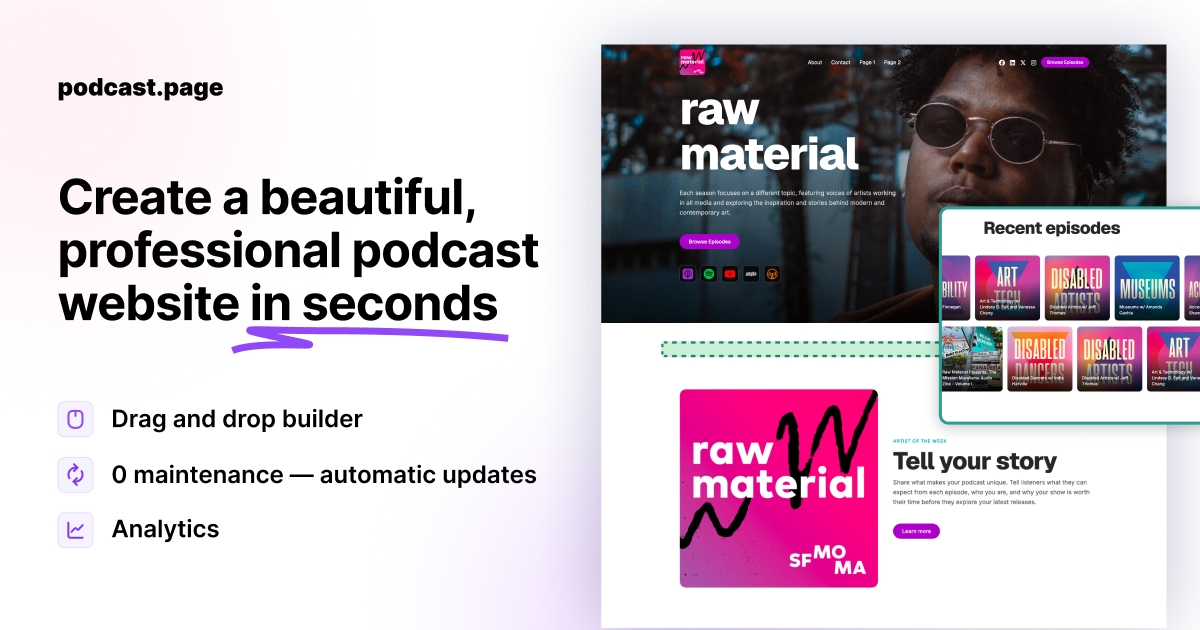
Method 4: podcast.page and RSS-driven episode pages
podcast.page imports your feed and renders a player on each generated episode page. You embed the show on the web by linking to those pages or using oEmbed-style links where supported, rather than copying code per episode. New episodes from your host appear on episode pages with a player included, so maintenance drops to updating your feed as you already do.
[Screenshot: episode page with embedded audio player and show notes]
Best when the website is the primary archive and you want zero copy-paste after each publish.
Method 5: Third-party RSS players
Useful when you want one script across a static site or blog without a full podcast builder:
- Podlove Web Player: open-source HTML5 player with chapters and transcript support; WordPress plugin available.
- PodEmbed: feed-driven embed with three sizes: full player, compact card for blog posts, and sticky bar for site-wide playback.
- Octopod Player: lightweight web component:
<octopod-player src="episode.mp3"></octopod-player>after loading their CDN script.
Evaluate whether the tool reads your RSS feed automatically or expects manual episode URLs.
Embed best practices
Put the player near the episode title. Visitors should not hunt below long intro copy.
Pair the player with show notes. Embeds handle playback; notes handle links, sponsors, and timestamps listeners reference later.
Offer app subscribe links too. Some visitors prefer Apple Podcasts or Spotify over in-browser audio. A row of platform badges below the player covers both habits.
Test autoplay carefully. Autoplaying audio often hurts UX and may be blocked by browsers. Let the visitor press play.
Check page speed. Multiple heavy iframes on one page slow loads. Prefer one player per episode page.
For player selection beyond embed mechanics, read podcast player for website options compared.
Troubleshooting common embed issues
Player does not appear: CMS stripped the iframe. Use an embed block that allows scripts/iframes or whitelist the host domain.
Works on desktop, broken on mobile: height too small or host player not responsive; increase iframe height or switch to the host's responsive snippet.
Episode plays but art is missing: feed metadata incomplete; fix artwork in your host before re-embedding.
Old episode still shows after publish: caching plugin or CDN serving stale HTML; purge cache after new embeds.
Frequently asked questions
Can I embed my entire podcast feed on one page?
Some hosts offer a multi-episode or show player embed. RSS-driven website builders also generate archive pages that behave like a living embed of your catalog.
Do I need separate embeds for Apple Podcasts and Spotify?
No for playback on your site. Use one web player fed by your hosted audio file. Link out to apps separately for subscribe actions.
Is embedding the same as hosting the audio on my website?
No. The audio file usually stays on your podcast host or CDN. The embed is a player that streams from that source.
Can I embed a podcast on a Notion or Carrd page?
If the platform allows iframe or embed blocks, yes. Use your host's embed snippet and verify mobile playback.